
Soft Hyphen: What It Is and How to Find and Remove It
Soft hyphen explained: how it renders, why it breaks copying and search, how to find it, and when to remove it safely.
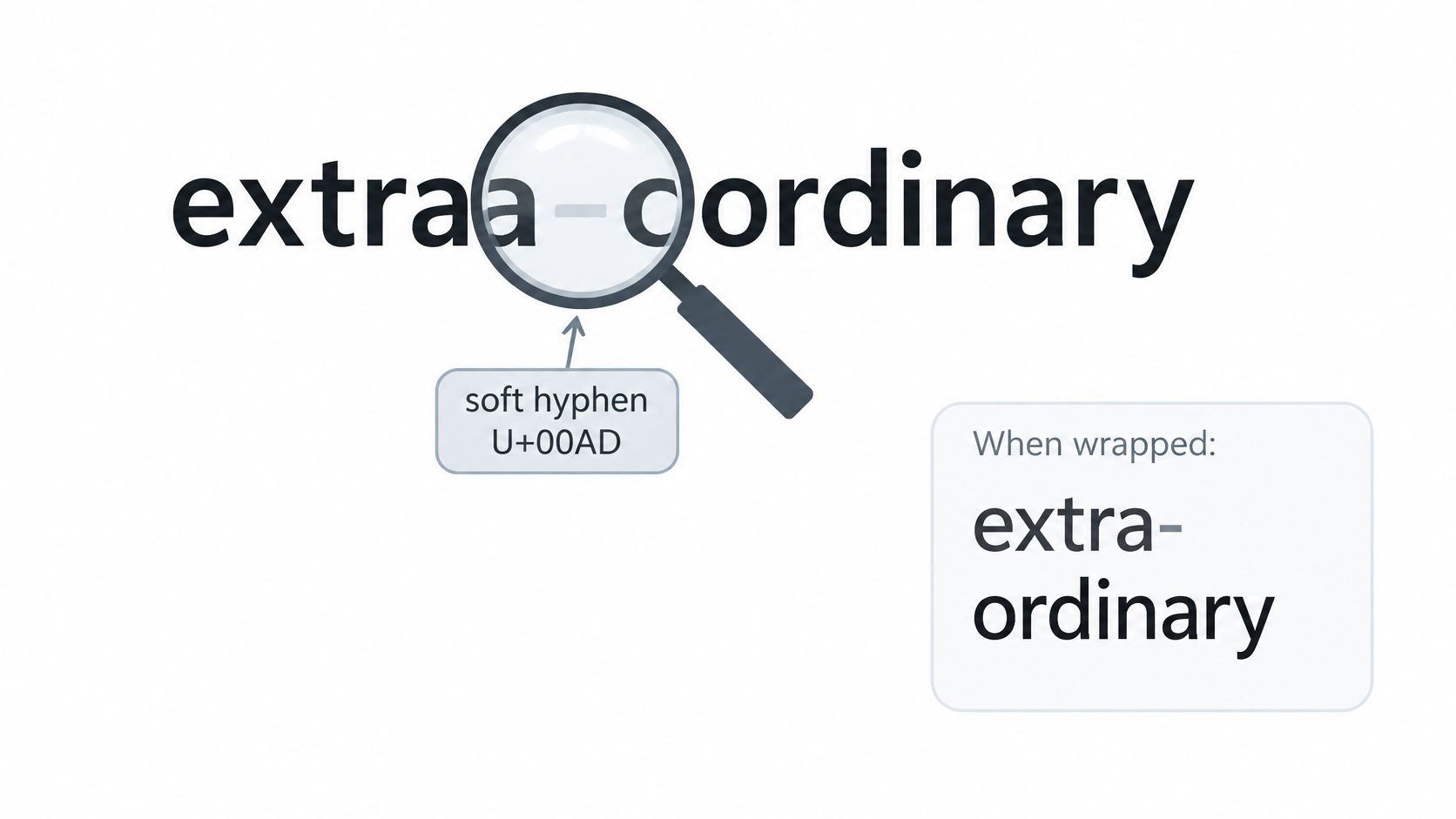
A soft hyphen is Unicode U+00AD, an invisible character that shows a hyphen only when a line breaks at that point. It can exist in text even when no hyphen is visible.
A writer pastes a paragraph into Word, notices an unexpected hyphen, and deletes it. Later, the same word fails a search or database lookup even though its spelling looks correct. The problem may be a hidden formatting instruction rather than a spelling mistake.
The destination determines the right action. A controlled page layout may benefit from soft hyphens, while a search index or copy-safe text export usually needs them removed.
Table of Contents
- What a Soft Hyphen Is and Why It Stays Invisible
- How Browsers and Editors Display a Soft Hyphen
- Why Soft Hyphens Break Copying and Search
- How to Find Soft Hyphens in Your Text
- When to Keep or Remove Soft Hyphens
- Soft Hyphens Are Not AI Watermarks and What to Check Before Publishing
What a Soft Hyphen Is and Why It Stays Invisible
Consider the word extraordinary, with a soft hyphen inserted after extra. In a wide column, the word looks unchanged. In a narrow column, the layout system can split it into extra- at the end of a line and ordinary at the beginning of the next.
The character acts like a pencil tick in a margin: permission to split at that location, but only if necessary. It doesn't permanently add punctuation to the displayed spelling.
According to the Unicode line-breaking specification, U+00AD SOFT HYPHEN is an invisible format character that marks an optional intra-word break. Its line-break property is BA, meaning “break after,” and it normally contributes no width when the word remains unbroken.
Soft hyphen compared with similar hyphen characters
Several characters can look alike, or remain equally invisible, while giving software different instructions.
| Character | Code point | Visible when no line break | Main use |
|---|---|---|---|
| Soft hyphen | U+00AD | No | Optional line-break point inside a word |
| Hyphen-minus | U+002D | Yes | Ordinary typed hyphen, always shown |
| Hyphen | U+2010 | Yes | Typographic hyphen, always shown |
| Non-breaking hyphen | U+2011 | Yes | Hyphen that prevents a line break |
| Zero-width space | U+200B | No | Break opportunity with no hyphen shown |
The non-breaking hyphen keeps connected text together. The zero-width space permits a break without requesting a visible hyphen. Neither is an interchangeable replacement for a soft hyphen.
For writers entering punctuation by voice, AIDictation's punctuation guide for macOS dictation is a useful companion reference for deliberate punctuation entry. Spoken punctuation and invisible layout controls solve different problems, so a dictated hyphen shouldn't be assumed to create conditional hyphenation.
Recognizing the stored form
In HTML, a soft hyphen may appear as ­ or ­ rather than as an obvious mark in the source. Those references describe the character; they aren't visible spelling that belongs inside the published word.
An illustrative source form is extra­ordinary. Reading that markup makes the intended break location clear, even when the rendered page doesn't show it.
Practical rule: No visible hyphen doesn't mean no soft hyphen.
Keep the character when that break location is intentional. Remove it when the destination needs the uninterrupted word without embedded layout instructions.
How Browsers and Editors Display a Soft Hyphen
A browser doesn't draw every character it receives. Its line-breaking system first considers the available width and permitted break locations. If it selects the soft-hyphen position, the renderer can display a hyphen at the line end.
That distinction explains why resizing a window can make a hyphen appear or disappear without changing the source text. The stored instruction stays the same; the layout decision changes.
How CSS controls the result
The CSS hyphens property controls whether the browser uses these opportunities. MDN Web Docs identifies the feature as available across browsers since September 2023.
none: Suppresses hyphenation, including breaks suggested by soft hyphens.manual: The default value permits explicitly supplied hyphenation opportunities, such as soft hyphens, rather than adding automatic ones.auto: Allows automatic hyphenation as well as explicit opportunities. Results depend on language support and available hyphenation resources.
For automatic hyphenation, the page or element needs the correct lang attribute. A browser can't reliably apply language-specific word-breaking rules when the declared language is missing or wrong.
Testing a narrow layout
Consider a product name in a sidebar containing extra­ordinary. With hyphens: manual, the name remains intact when space permits and can split at the supplied location when the sidebar becomes narrow.
Word processors apply their own layout rules, and editing views may expose formatting marks differently from browsers. A browser preview therefore doesn't establish how the same text will behave in Word or in a PDF exported from it.
The practical check is a width test followed by a destination test: resize the column, then inspect the actual publishing format. Keep the soft hyphen if it appears only at the intended break and the resulting copy behaves correctly. Remove it if the destination displays an unwanted mark or doesn't need manual word-breaking instructions.
Why Soft Hyphens Break Copying and Search
A paragraph can look correct in a browser but acquire an unexpected hyphen after being pasted into Word. The clipboard may carry the character along with the visible text, leaving the receiving editor to interpret it.
Historical soft-hyphen compatibility testing documented differences in copying into Word and in search-engine treatment. Some systems treated the character as punctuation or a word separator; others ignored it. Those findings demonstrate a compatibility problem, not a promise that every current application behaves the same way.
Appearance isn't string identity
A soft hyphen occupies one Unicode code point, represented in UTF-8 by C2 AD. An exact comparison can therefore distinguish a word containing it from the same visible word without it.
The LDAP Internationalized String Preparation specification, RFC 4518, published in 2006, explicitly maps U+00AD to nothing, alongside U+1806 MONGOLIAN TODO SOFT HYPHEN. Under that preparation process, strings that differed only by the removed character can become equivalent.
That rule belongs to a particular protocol. It doesn't mean every browser, database, search box, or programming language automatically performs the same cleanup.
Soft hyphen symptoms, causes and quick fixes
| Symptom | Likely cause | Quick fix |
|---|---|---|
| A word does not match in search | Soft hyphen splits the word in the index or search engine | Remove U+00AD from the source before indexing |
| A visible hyphen appears after pasting into Word | Soft hyphen was copied with the text and shows at a break | Strip U+00AD after pasting; don't rely on plain-text paste alone |
| Two identical-looking strings do not match | U+00AD present in only one string | Remove U+00AD before comparing or apply the required string preparation |
| An identifier lookup fails for a name or ID | Invisible character in one of the stored values | Remove U+00AD and compare again |
| A data import misreads a field | Format character inside a CSV or JSON value | Remove U+00AD before import and recheck row counts |
These are diagnostic possibilities, not proof that every failed search involves a soft hyphen. PDF extraction can introduce additional text-layer and word-boundary problems; BromeAI's guide to finding text inside PDF files provides useful context for investigating that destination.
A hidden format character doesn't make CSV or JSON syntax invalid by itself. The failure may occur later, when an importer validates a field or looks up an identifier.
Keep intentional layout hints in a controlled display copy. Remove them from matching and interchange copies when the field's rules don't permit them. The character isn't harmful or AI-generated; inconsistent handling causes the trouble.
How to Find Soft Hyphens in Your Text
Inspect the characters, not just the page. Repeatedly searching for the visible word can miss the distinction that matters: an extra format character inside it.
A code-point inspection gives an editor something concrete to verify. It also avoids deleting ordinary hyphens that belong in names, compounds, or identifiers.
A reliable inspection sequence
Start with the source. Open the original text or markup rather than relying only on the rendered page. Browser Find isn't a dependable inspector for invisible characters.
Use a character-aware editor or local inspector. Simple Unmark's invisible-character remover provides access to a free, unlimited browser-local inspector at its tools page, with no signup, credits, or content upload. Text is scanned as it is pasted or typed, and supported characters appear by code point.
Search for the character explicitly. In a code editor with compatible regular-expression support, search for
\u00AD; otherwise, paste the actual character into Find. Escape syntax differs between editors, so the search mode must support the chosen notation.Use Word's optional-hyphen search. In Microsoft Word Find and Replace,
^-means an optional hyphen. Alternatively, in Word versions supporting the shortcut, typing00ADand pressing Alt+X converts it into the character, which can then be copied into Find.Inspect HTML representations too. Search source markup for
­and­, as well as the raw character. Searching only the rendered text won't identify which representation the author stored.Record matches and locations. Pay particular attention to searchable words, names, identifiers, and exported fields. A location inside display-only prose may justify a different decision from a location inside a database key.
Repeat the inspection after editing. A changed appearance isn't sufficient evidence of removal. Recounting confirms whether the underlying character remains.
A worked copy-and-paste example
Suppose a paragraph pasted into Word appears to contain a stray hyphen in internationalization. A source inspection finds a single U+00AD inside that word.
That finding separates the stored instruction from the displayed mark. It doesn't establish that a visible hyphen after the whole word has the same cause; any remaining punctuation needs separate inspection.
Keep the match if the document deliberately controls that word's typesetting. Remove it if the paragraph is heading into search, comparison, or copy-safe publication, then repeat the search.
When to Keep or Remove Soft Hyphens
Keep soft hyphens for intentional typesetting; remove them from copies intended for matching, exchange, or unrestricted reuse. A publishing workflow can retain a layout copy while producing a separate clean export.
The Unicode line-breaking specification's treatment of soft hyphens supports that distinction: the character supplies conditional intra-word breaking rather than permanent visible punctuation. Replacing it with a normal hyphen changes the displayed text instead of merely removing a layout instruction.
Removing the character without changing the word
The replacement should normally be nothing, not a space and not a visible hyphen. A space splits the word; a visible hyphen adds punctuation that may never have belonged there.
In a code editor, replace the raw character. With compatible regular-expression mode enabled, find
\u00ADand replace it with an empty string. Preview the matches before applying a document-wide replacement.In Microsoft Word, remove optional hyphens. Put
^-in the Find box, leave Replace empty, and choose Replace All. Ordinary typed hyphens should remain untouched.In HTML, remove encoded forms too. Delete
­,­, and raw U+00AD characters where they represent unwanted soft hyphens. Avoid changing examples that intentionally document those literal strings.Prepare the export, then inspect it. A plain-text converter can remove rich formatting, but plain text can still contain invisible Unicode. Explicitly check for U+00AD afterward rather than assuming conversion removed it.
Check the final layout. Removing preferred breaks may change wrapping or cause long words to overflow narrow containers. Adjust layout or automatic hyphenation deliberately instead of restoring hidden characters indiscriminately.
Plain text is a text format, not a guarantee that every stored character has a visible glyph.
Normalization isn't soft-hyphen removal
Standard Unicode normalization, including NFC and NFKC, doesn't remove U+00AD by itself. Normalization addresses defined equivalences and compatibility mappings; targeted character deletion is a separate operation.
Likewise, removing line breaks doesn't necessarily remove the soft hyphens embedded inside words. Each cleanup operation needs a clearly defined purpose and a check against the resulting text.
Keep or remove soft hyphens by destination
| Context | Keep or remove | Reason |
|---|---|---|
| Responsive web article with long compounds | Keep | Controls intentional breaks at narrow widths |
| Print or PDF layout under editorial control | Keep | Retains intended typesetting opportunities; verify the export |
| Search index, database or CSV export | Remove | Avoids invisible mismatches in matching and sorting |
| Copy-safe plain text or email | Remove | Prevents hidden or visible artifacts after pasting |
| Accessibility or screen reader remediation | Remove | Removes an unnecessary invisible format character from the text stream |
| Text that must keep an exact displayed hyphen | Replace deliberately, not by default | A visible hyphen changes the displayed punctuation |
Accessibility remediation still requires testing reading order, pronunciation, and the exported text layer. Removing a character isn't a complete accessibility audit.
Decide per destination, not per document. Keep a useful break hint in a controlled layout, but remove it from the version that readers, applications, or importers must treat as uninterrupted text.
Soft Hyphens Are Not AI Watermarks and What to Check Before Publishing
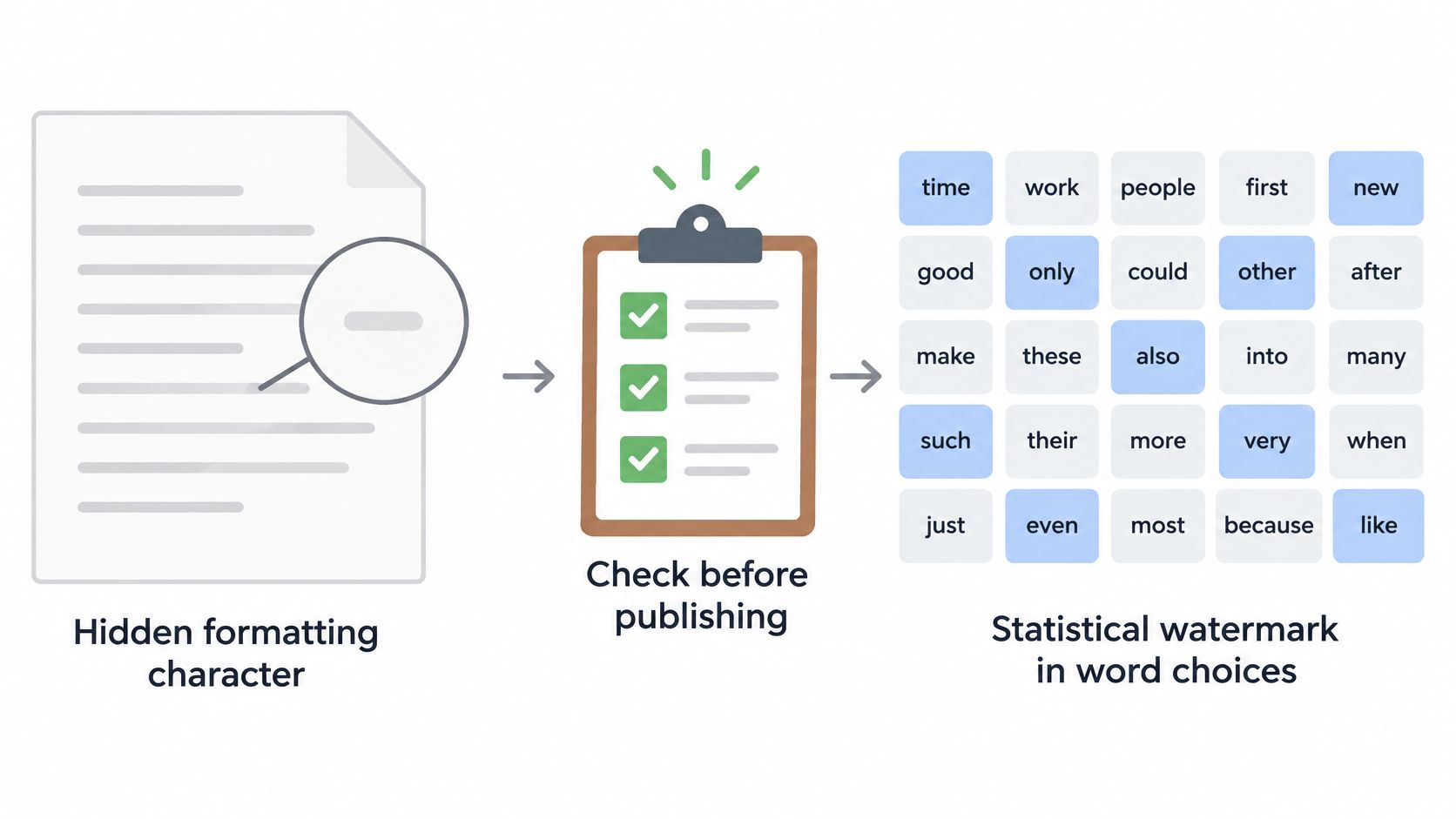
A soft hyphen is a hidden formatting character. A statistical watermark is a pattern in the word or token choices made during generation.
Finding U+00AD doesn't prove AI authorship. Conversely, a page without hidden characters isn't proof that its wording contains no statistical watermark.
Research evaluating SynthID-Text reports that meaning-preserving paraphrasing, copy-paste modifications, and back-translation can substantially reduce watermark detectability. That supports describing rewriting as signal reduction, not proof of human authorship or guaranteed success against every detector.
Keep the transformations separate
- Hidden Unicode cleanup: Removes selected stored characters without needing to rewrite the wording.
- Standard Unicode normalization: Applies Unicode's defined normalization mappings, not a general invisible-character deletion policy.
- Statistical-watermark rewriting: Changes word choices and therefore requires human review of meaning, facts, and tone.
Deleting hidden characters, converting to plain text, and repairing line breaks don't remove a token-distribution watermark. The hidden Unicode versus statistical watermarks guide explains the distinction and its methodological limits.
Provider claims also need a dated status check. A ChatGPT label alone doesn't establish that an output is watermarked, and no particular detector verdict can be promised. Simple Unmark cannot measure the remaining provider watermark signal or guarantee removal or permanent undetectability.
Publication checks
- Confirm the destination: Apply the keep-or-remove decision to the actual export.
- Inspect the text: Confirm no unwanted U+00AD remains in searchable or copy-safe fields.
- Review the layout: Check wrapping and any displayed hyphens.
- Review wording by hand: Any rewrite needs editorial approval.
For academic work, Thesis Book Project's guide to choosing the right thesis editing pass helps distinguish mechanical correction from deeper wording changes. Keep soft hyphens only where the final layout needs them; remove unwanted ones without treating cleanup as an authorship test.
Simple Unmark offers free browser-local tools for invisible-character removal, line-break cleanup, and plain-text conversion, without signup or content uploads. Editors can paste text for inspection, remove unwanted soft hyphens, and recheck the destination copy without rewriting its wording or claiming statistical-watermark removal.
- soft hyphen
- U+00AD
- invisible characters
- hidden Unicode
- remove soft hyphen
Related articles

Hidden Text Characters: Find and Remove Them Safely
Identify zero-width spaces, unusual spacing and direction controls. Understand legitimate uses and inspect context before removing hidden characters.
Unicode Control Characters: Inspect Before Removing
Learn how invisible controls affect text, which are useful in multilingual writing, and how to inspect unwanted code points before cleaning them.
Invisible Characters in Copied Text: Inspect and Clean
Find hidden code points in a pasted passage, understand their context, and remove supported copy/paste artifacts without rewriting visible wording.