
Plain Text Editor Online: 10 Tools Compared for 2026
Compare 10 plain text editor online tools by file support, privacy, autosave, and sharing, with picks for writers and editors who need clean text.
Many “plain text” editors online get recommended because they look like notepads. That's not enough. A browser box can apply Markdown shortcuts, accept rich formatting when you paste, or retain invisible characters that cause trouble in another system. The right tool depends on whether you're drafting a quick note, editing an existing file, or preparing text to paste elsewhere.
This comparison focuses on practical differences: formatting behavior, encoding controls, local storage, sharing, and file support. A local note may stay in one browser profile; a share link or sync feature can send it beyond your device. And a tool built to edit JSON or CSV files isn't automatically the quickest place to jot down a thought. For a broader look at how Markdown behaves across writing and collaboration apps, see Markdown formatting across collaboration tools.
The browser-based editor grew out of technologies that made document editing possible without desktop software. Google launched Docs and Spreadsheets as a beta service in October 2006, building on Writely, a web word processor that Google acquired in March 2006, as Google's account of Google Docs' history explains. Today's tools range from file editors to disposable scratchpads. Their published features and documented behavior are the basis for this comparison, but check the current product details before relying on any one tool for sensitive text or important files.
Table of Contents
- 1. Text Editor
- 2. NoteDraft
- 3. OnlineNote.app
- 4. Notepad Online
- 5. Typewell
- 6. Notepad, Offline capable
- 7. PasteePad
- 8. RapidTables Notepad
- 9. Note-pad.net
- 10. EditPad.org
- Which online plain text editors work offline, need an account, support sharing, and suit which task
- Pick by Task, Then Check Where Your Text Goes
1. Text Editor
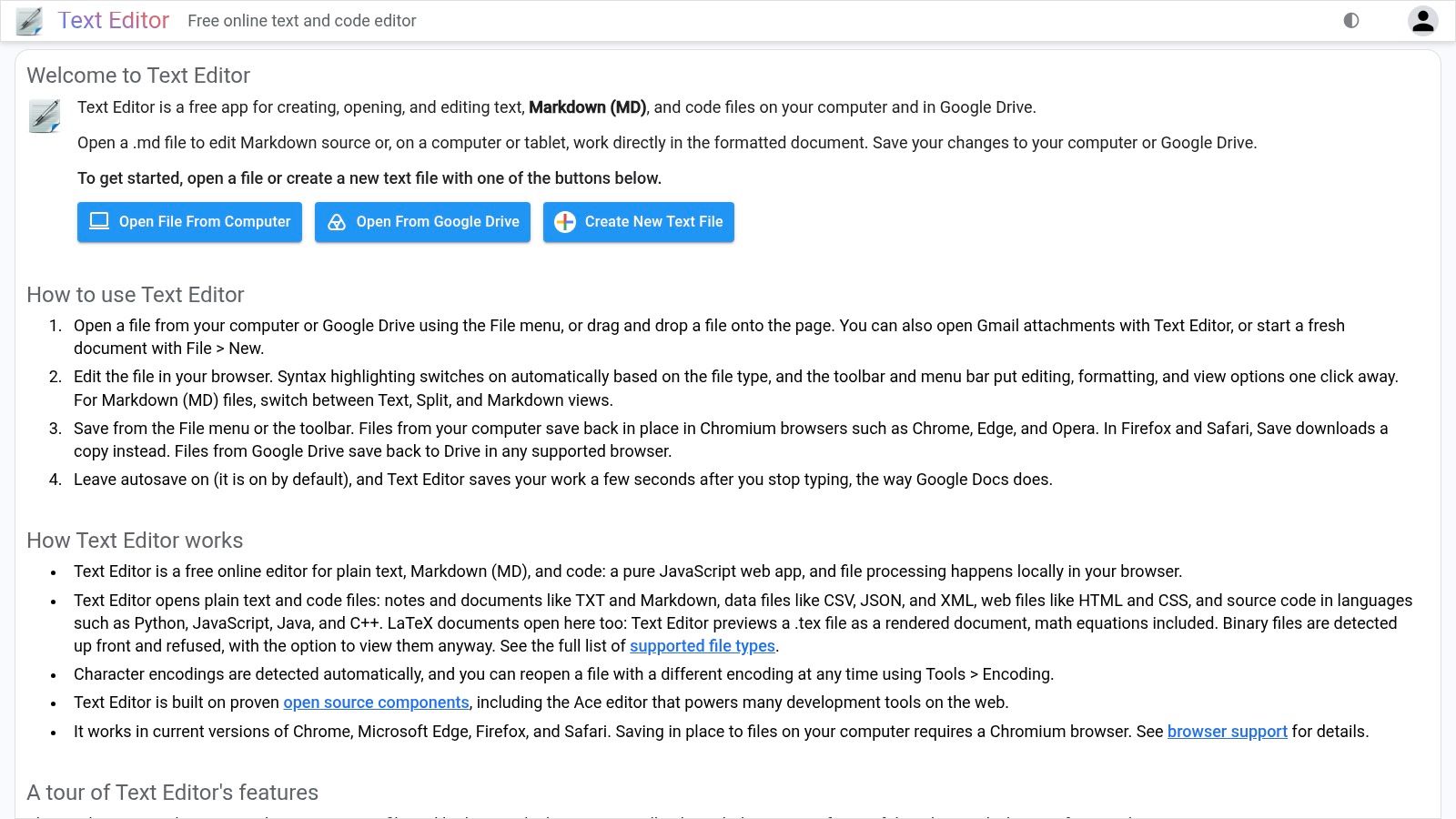
For an existing file, Text Editor is the most direct fit in this list. It handles plain text, Markdown, CSV, JSON, XML, HTML, CSS, code files, and LaTeX, so you can use it for a configuration file or data export rather than pasting everything into a generic note box.
Its syntax highlighting and Markdown text, split, and preview views are useful when the file's structure matters. Encoding detection and the option to change an encoding also address a common failure point: a file that opens with garbled characters may have been decoded incorrectly, not damaged. The editor processes files locally in the browser, and autosave and browser-based file handling make it more capable than a temporary scratchpad.
Best fit: Choose it when you need to inspect or edit an existing text-based file, especially one with structured content.
The trade-off is complexity. For a sentence you plan to copy into a form, its extra views and file controls are more than you need. Saving changes back to a local file in place requires a Chromium-based browser; Firefox and Safari download a copy instead. That distinction matters if you expect the original file to update automatically.
Text Editor is free to use, but “free” doesn't make it the right choice for every quick edit. If you're changing a JSON key or checking a CSV, the file support and encoding controls earn their keep. If you just need to write a short note, a simpler notepad gets you to the result with less setup.
2. NoteDraft
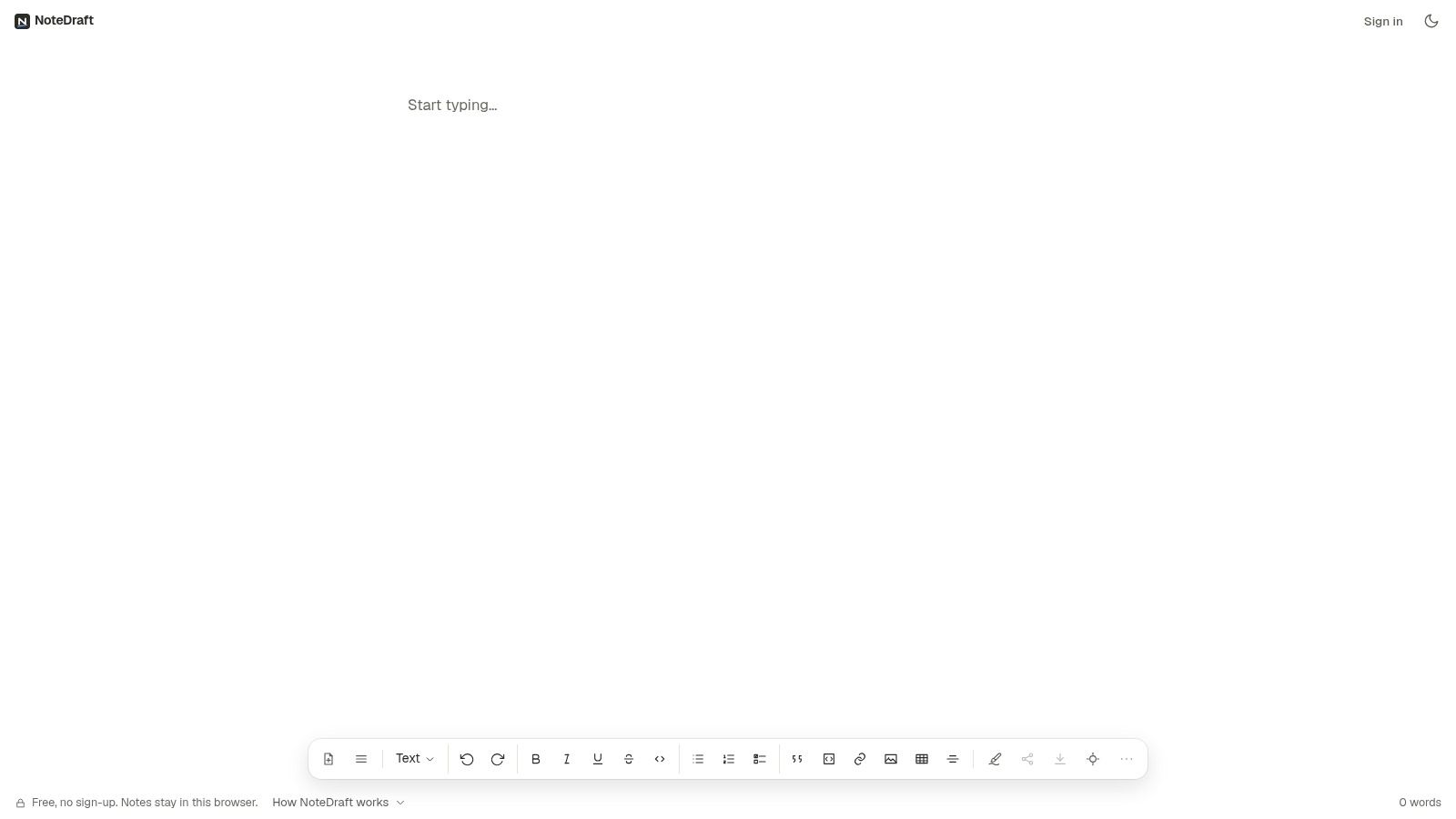
NoteDraft starts in an editor, not an account setup flow. That makes it a practical pick for a quick draft, while its ability to open TXT, Markdown, CSV, JSON, HTML, and common code files gives it more range than a blank text area.
You can keep multiple notes, search them, and use recovery features when you need to find or restore writing. It autosaves in the browser and supports offline use after you've visited the site. Notes can be downloaded as plain text, Markdown, HTML, or PDF, so you can move a draft into another tool without treating the browser as its permanent home.
The main limitation is that browser storage isn't cross-device sync. A note saved on one browser profile won't automatically show up on another device just because you open the same site there. If you want reliable continuity, download the file or use a separate storage method you trust.
Practical rule: If you're using a browser notepad as a temporary workspace, export the note before clearing browser data or switching devices.
NoteDraft's download and sharing options make it more than a strictly plain-text pad. That's useful when you want a PDF or HTML version, but unnecessary if you only need raw text to paste elsewhere. For a quick, no-sign-up start with note search and file handling, it's a strong middle ground. For confidential work, still check how any optional sharing feature handles the content before using it.
3. OnlineNote.app
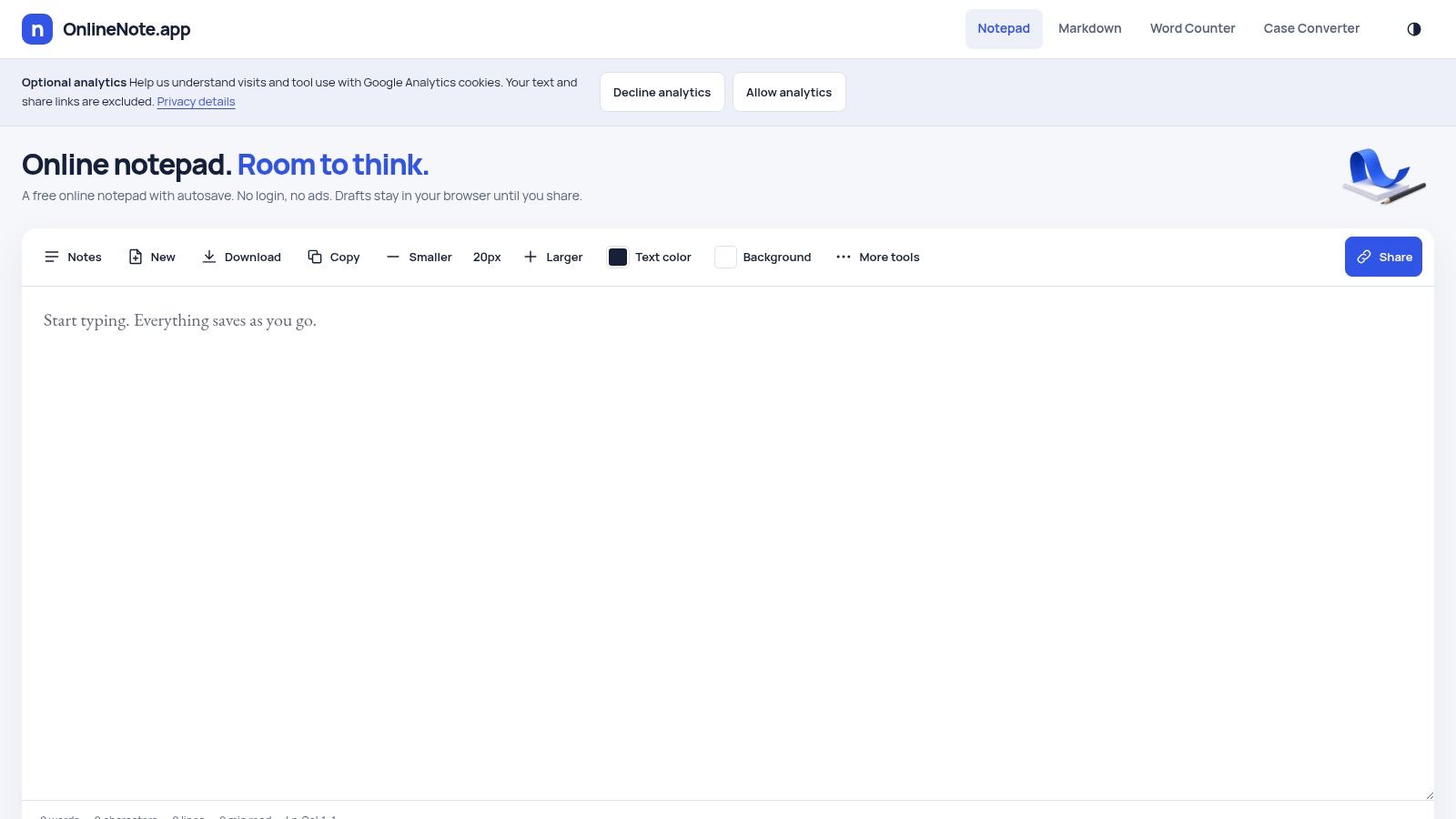
OnlineNote.app keeps its focus on plain-text drafting. There's no account requirement, and notes save locally in the browser. You can create multiple drafts, work offline after the first visit, and download a note as a TXT file when you're ready to move it.
That narrow purpose is its advantage. If you need a quiet place to write copy before pasting it into a publishing system, the editor doesn't ask you to manage a document project or choose among output formats. The site also describes itself as ad-free and explains its storage behavior, which helps set expectations about where ordinary notes live.
The limit is the same as with other local-first tools: your drafts belong to the browser profile where you made them. They don't automatically sync to your phone or another computer. A share-by-link option is available, but once you share a note, it's no longer stored only in your local browser.
A share link changes the privacy model. Treat it as a deliberate handoff, not a harmless way to move a note between your own devices.
Use OnlineNote.app for drafts you want to keep local and export yourself. Don't assume local autosave is a backup. If you use the sharing feature, consider whether the text is appropriate to send beyond the browser, and keep a separate copy of anything you can't afford to lose.
4. Notepad Online
Notepad Online combines local-first notes with optional collaboration. Ordinary notes autosave in the browser, while shared notes can use read-only links or collaborative editing protected by an edit password. Its responsive layout supports use across phones, tablets, and desktops, and it doesn't require collaborators to create accounts.
That makes it more useful than a personal scratchpad when you need someone else to review or edit a note. You can export text and back up notes, too. But local autosave doesn't mean a note will follow you across devices. You still need to export it or use the sharing workflow when you want access elsewhere.
Sharing is the important trade-off. A shared note sends or syncs content beyond the local browser, so don't treat it as equivalent to keeping a private draft on your device. The site is ad-supported, which can also make the writing environment less minimal than a bare editor.
Choose Notepad Online when you need accessible collaboration without asking readers to register. For private drafting, stay with ordinary local notes and keep a separate backup. For sensitive material, avoid share links unless you've checked the relevant sharing terms and are comfortable with the content leaving local storage.
5. Typewell
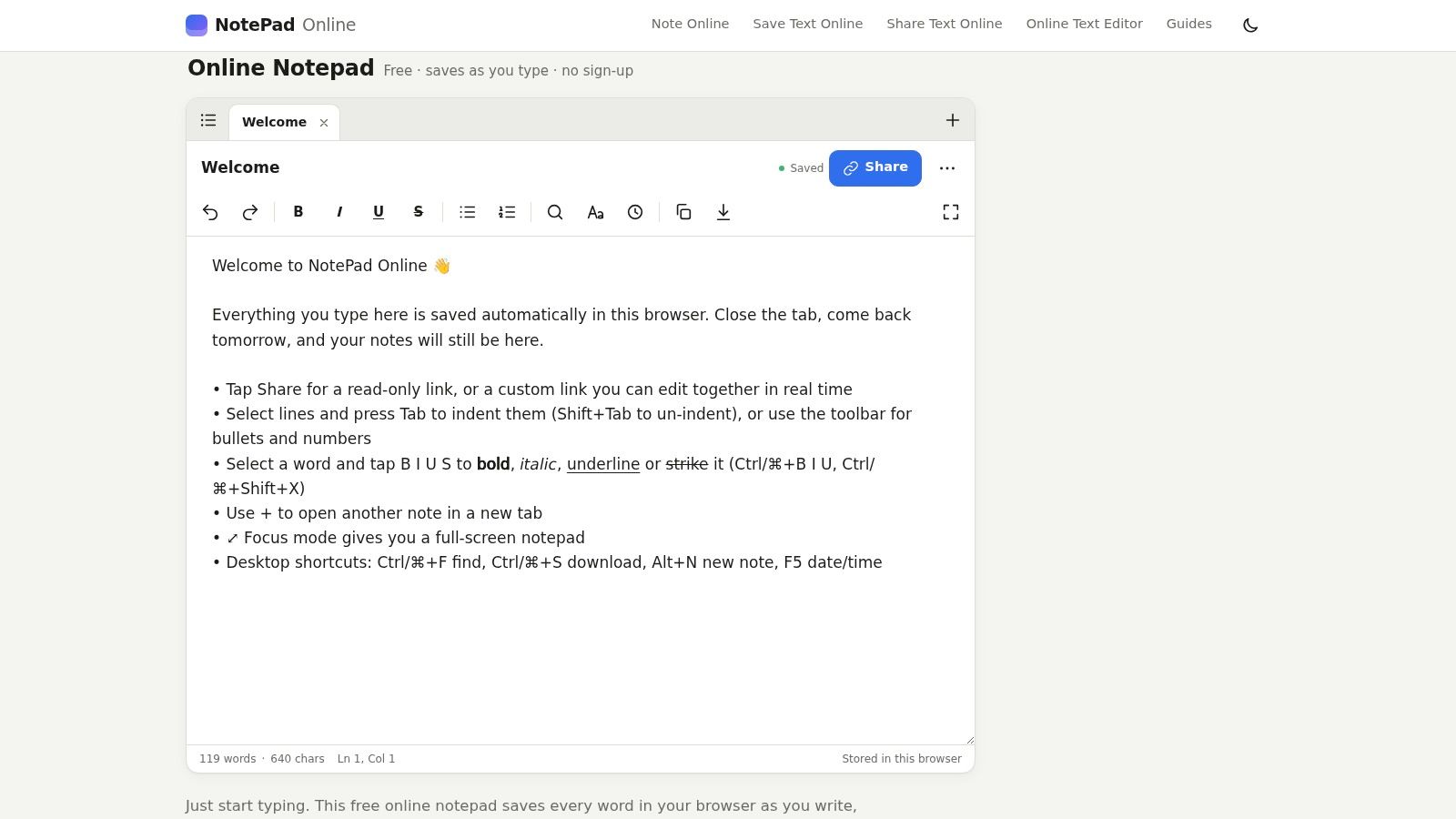
Typewell is a browser notepad with Markdown-style shortcuts. You can type a heading, list, quote, or code block with keyboard shortcuts, then search within a note or across notes. It saves in the browser and works offline, and it can export as plain text, Markdown, HTML, or PDF.
Those shortcuts speed up structured drafting, especially if you already write in Markdown. But they also mean Typewell isn't strictly plain text in the sense of “just type characters with no editor behavior.” Formatting shortcuts can alter how a line is represented. If you need exact raw input, test the behavior before drafting a document that depends on literal symbols.
Typewell is free and open-source, doesn't require sign-up, and offers optional Google Drive backup. The backup option gives you another way to keep notes, but local notes remain tied to the browser unless you export or back them up. Don't mistake offline support for automatic synchronization.
Use it when you want a lightweight writing pad with useful structure and export options. Skip it if you want an inert text box that won't interpret Markdown-like keystrokes. For plain-text portability, export the file in the format your next tool expects, then check the result before sending it on.
6. Notepad, Offline capable
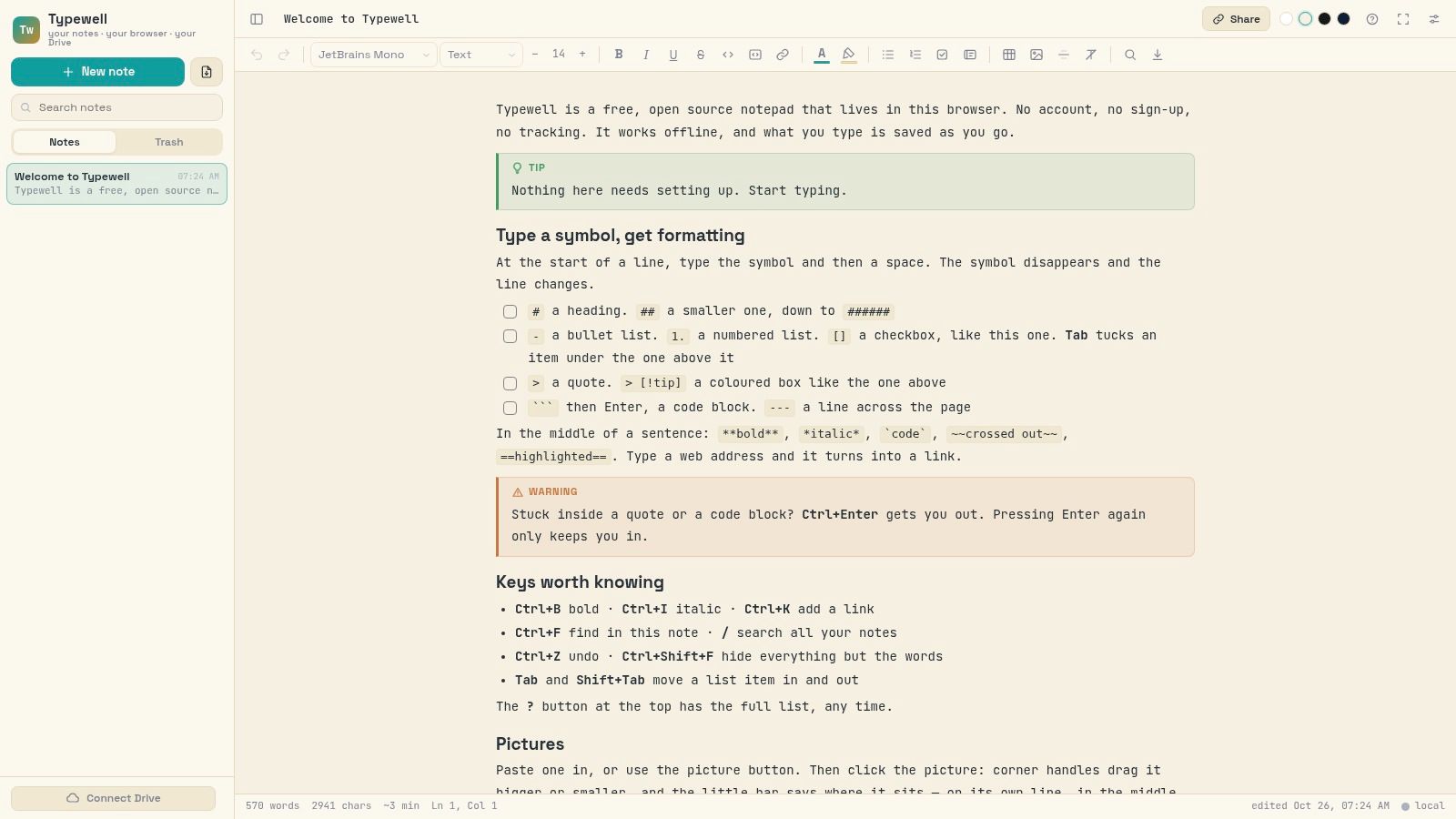
Notepad is a lightweight web app designed for drafting and organizing plain-text notes, not for handling a wide range of existing files. It autosaves locally, works offline, and can be installed as a Progressive Web App. Dark mode, focus mode, and fullscreen help keep the writing area clear when you're trying to concentrate.
The note statistics and snapshots add modest organization without turning it into a full document-management system. It can export plain text and other formats, which is useful when you want a copy outside the browser. Still, the app's core strength is writing notes, not opening and editing a broad set of file types.
Local storage is also a responsibility. If you use the app for durable notes, make a separate export or backup. Offline access means you can keep working without a connection; it doesn't guarantee that your notes are synced or recoverable if browser data disappears.
This is a good choice for distraction-free drafting when you want an installable app-like experience without a desktop editor. It's less suitable for code or data files that need format-specific views, encoding controls, or a more complete file workflow. Treat exports as part of your routine, not as an emergency measure.
7. PasteePad
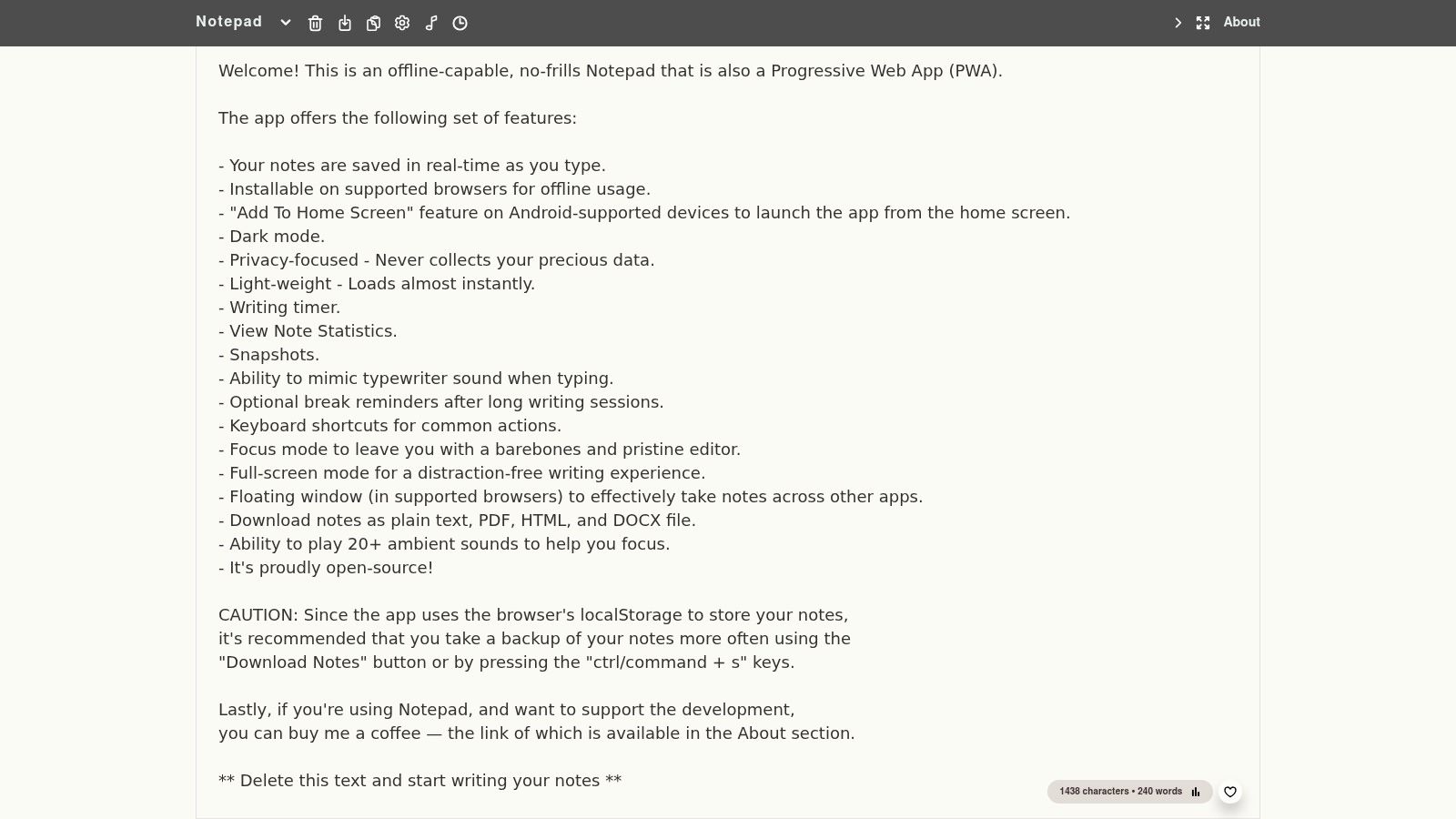
PasteePad is built for keeping several short notes, not just entering text into a disposable box. It supports multiple notes, lists, checkboxes, and basic formatting, with a dark-mode-first interface and keyboard shortcuts. You can install it as a Progressive Web App and use it offline.
That structure helps when a plain text list isn't enough. For example, checkboxes can make a short personal task note easier to scan than a block of lines. The trade-off is that formatting and checkboxes make PasteePad more than a strict plain-text editor. If you need content to remain completely unadorned, test the export or download path before relying on it.
The app stores data in the browser and doesn't provide cross-device sync just by opening the site on another device. Offline access is convenient, but it doesn't replace a backup. Download your data if the notes matter or you're moving to a different browser profile.
PasteePad fits personal organization better than one-off copy editing. For sensitive one-time notes, consider the difference between local storage and a service built for one-time notes and encrypted pastes. Don't infer encryption from a privacy-minded interface; verify the actual handling terms before pasting anything confidential.
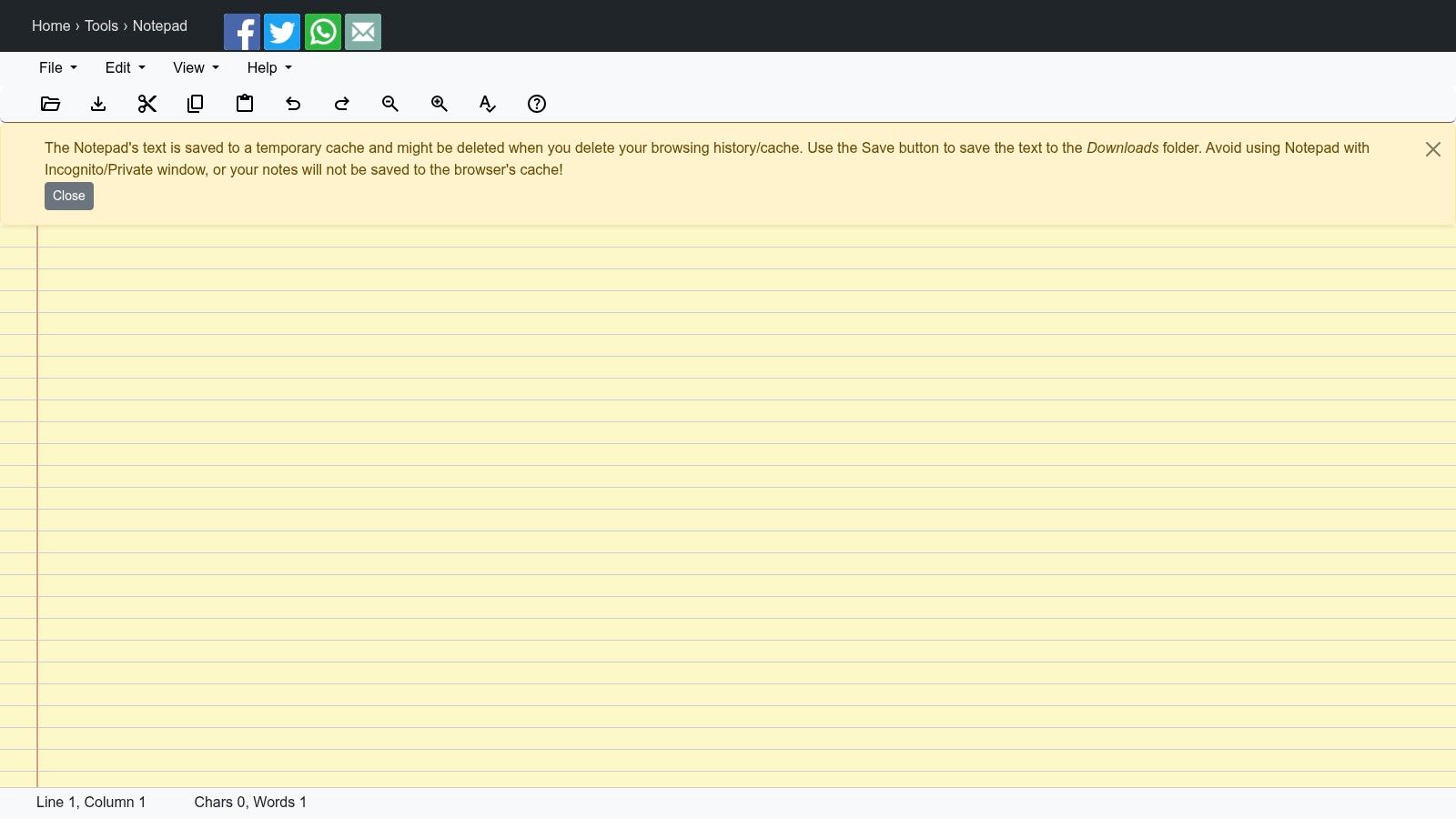
8. RapidTables Notepad
RapidTables Notepad offers familiar editing controls without much setup. It supports opening, saving, and saving as, along with undo and redo, cut and paste, printing, and text-file downloads. Dark mode and text display preferences make it easier to adapt the page to your working style.
This is a practical tool for a short edit when you already know the basic file operations you want. There's no need to learn a notes system or work through a set of developer views. Write or paste the text, make the change, then save or print it.
The warning is storage. The site says cached text may be deleted when browser data is cleared, so don't use the page as the sole home for important work. Download a text file when you're done. RapidTables is also less focused on managing several notes or syncing them across devices, which is fine for a temporary edit but limiting for ongoing writing.
Choose it for the familiar controls and direct file output. Avoid treating a browser cache as an archive. If you're editing something important, save a copy you control before closing the page.
9. Note-pad.net
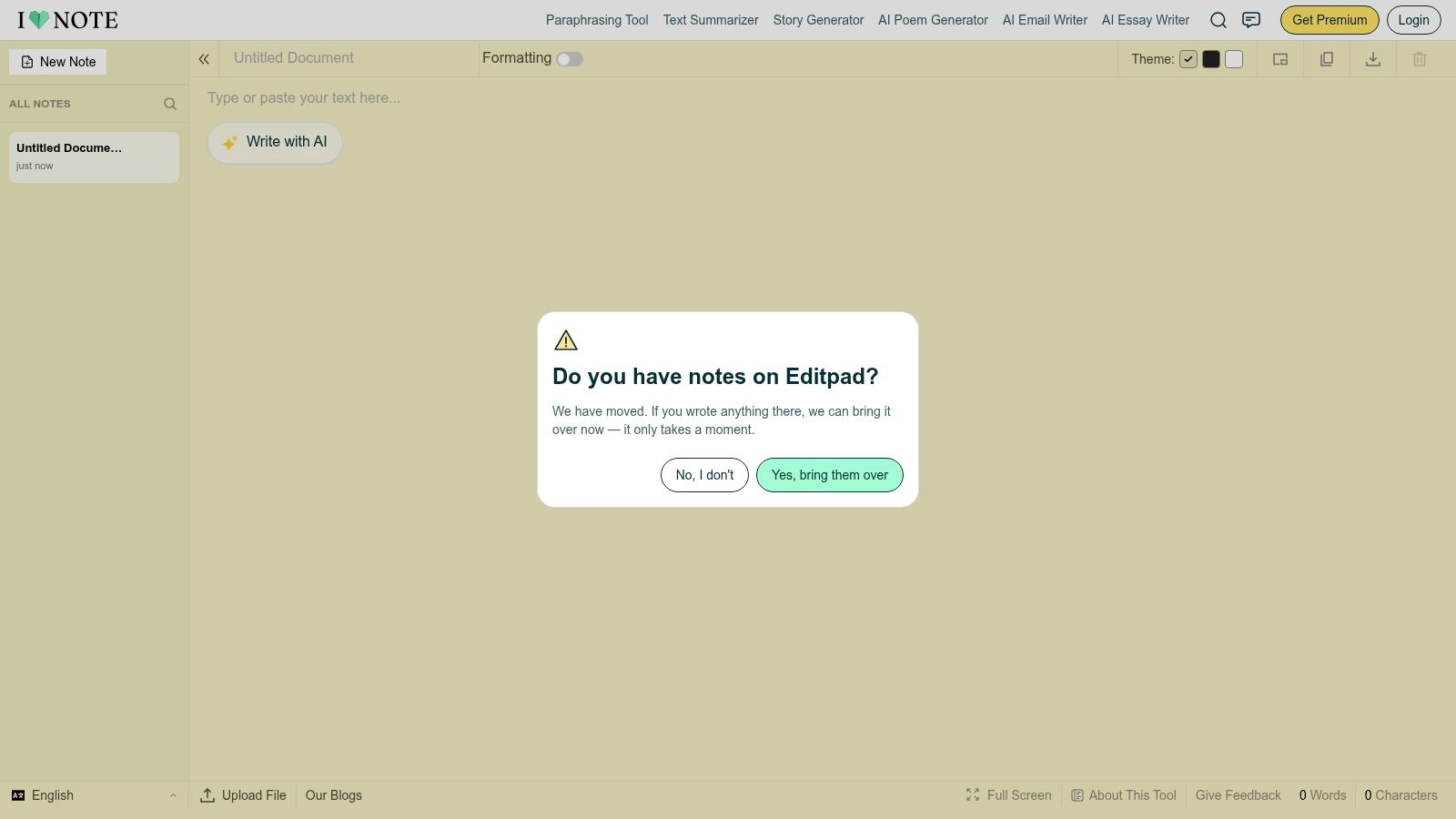
Note-pad.net combines plain-text editing with an optional visual editor and account-based note management. It autosaves and backs up notes, supports search across notes, and offers configurable keyboard shortcuts. You can also share a note through a read-only or read-write link, and download notes when you need a separate copy.
The searchable, persistent setup is more useful for notes you expect to revisit than for a disposable scratchpad. The visual editor can help when you want formatted content, but it's unnecessary if your only requirement is raw text. You can use a lightweight version, though registration is still part of the product's account-oriented approach.
That account requirement is the central trade-off. No-login tools are faster for a throwaway note; Note-pad.net is aimed at managing notes over time. Before using its sharing controls, decide whether the recipient should only read the text or be able to edit it. Sharing convenience doesn't remove the need to think about where the content goes.
Pick Note-pad.net when search, backups, and note management matter more than avoiding an account. If you want a single plain-text box and nothing else, its additional features may feel like overhead. Download a copy when you need a file outside the service.
10. EditPad.org
EditPad.org brings plain-text editing together with word and character counts, fullscreen mode, download, and sharing. It also promotes related writing utilities, so it's less minimal than a basic notepad. For writers and editors checking length while working, counts are a practical addition rather than decoration.
The site also offers shared notes, including password-protected options, and claims support for uploading and editing certain document formats. Those extra capabilities may help if you're moving between writing tasks, but check the current feature conditions before depending on a particular upload or editing workflow. A promoted feature isn't the same as a guarantee that every file type will behave as you expect.
EditPad.org suits users who want a browser editor plus adjacent writing tools. It's a weaker fit if you want a quiet, bare text field with no extra choices. Sharing also changes where the text goes, so read the terms for the specific workflow before using it for private material.
The useful test is simple: paste a sample, inspect how it handles formatting, check the word count, and download the output. If that matches your destination system, the added tools may save a step. If you only need a clean scratchpad, choose a lighter option.
Which online plain text editors work offline, need an account, support sharing, and suit which task
The table below pulls the practical details from each entry into one view, so you can filter the list before reading further.
| Item | Offline use | Account needed | Sharing | Best for |
|---|---|---|---|---|
| Text Editor | Offline support not specified | Not specified | No sharing feature specified | Editing existing text, code, and data files |
| NoteDraft | Works offline after first visit | No | Downloads in several formats; no link sharing specified | Quick notes and common text or code files |
| OnlineNote.app | Works offline after first visit | No | Optional share-by-link | Distraction-free plain-text drafting |
| Notepad Online | Offline support not specified | No | Read-only links and collaborative editing | Local notes with optional sharing |
| Typewell | Works offline | No; Google Drive backup is optional | Exports notes; no sharing feature specified | Offline note-taking with Markdown shortcuts |
| Notepad, Offline capable | Works offline | Not specified | Exports notes; no sharing feature specified | Focused offline plain-text note-taking |
| PasteePad | Offline mode; installable as a web app | No | No sharing feature specified | Organizing multiple personal notes |
| RapidTables Notepad | Offline support not specified | Not specified | No sharing feature specified | Quick edits, printing, and text downloads |
| Note-pad.net | Offline support not specified | Yes, registration required | Read-only or read-write links | Persistent, searchable notes with sharing |
| EditPad.org | Offline support not specified | Not specified | Sharing options, including password-protected notes | Text editing with counts and extra writing tools |
Two patterns stand out. Only Note-pad.net requires registration; every other tool opens for anonymous use, which matters if you want to avoid tying text to an identity. Offline support concentrates in the dedicated note tools, while the file-oriented editors lean on a live connection or leave it unstated.
The sharing column is where plain text stops being local. A read-only link, a collaborative session, or a password-protected share all send text to a server. If the content is sensitive, treat any entry without "no sharing feature specified" as a tool that can move your text off the device.
Pick by Task, Then Check Where Your Text Goes
For existing files, start with Text Editor when you need broad format support and encoding controls. EditPad.org is another option if word and character counts, downloading, or sharing are part of the job, but check that its current file handling matches your needs. Neither choice makes every browser workflow equivalent to editing a file in a dedicated local application.
For quick drafts, NoteDraft starts directly in the editor and adds search, recovery, and export options. OnlineNote.app stays more focused on plain-text writing and local browser storage. If you want Markdown-style shortcuts, Typewell is more convenient, but that behavior may be unwelcome when you need literal plain text.
For multiple notes, Notepad Online offers collaboration, while Note-pad.net adds account-based search and backups. In both cases, distinguish local storage from sharing or syncing. Sharing a link or enabling collaboration can send text beyond the device, so read the storage and access terms before using those features for private content. For a broader perspective on note-taking workflows, see ClassLecture.ai's student note-taking app guide.
Before pasting sensitive text into any editor, check where it's processed, whether it's stored, and what happens when you share or export it. A browser interface alone doesn't tell you whether text stays local. For important work, save a copy you control and test the output in the system where you'll use it.
If text copied from an AI tool contains zero-width characters or other hidden Unicode artifacts, a plain-text editor may not identify or remove them. Simple Unmark combines a browser-based hidden-character scan and cleanup with a rewrite step. The scan runs in the browser, but DeepInfra reads submitted text to perform the rewrite; Simple Unmark doesn't store text or output in its database or analytics. Rewriting can reduce probabilistic watermark signals, but no detector outcome or complete watermark removal is guaranteed.
Simple Unmark lets you paste text, scan for hidden Unicode characters, clean it, review the result, and copy it out. If that's the specific problem you're solving, visit Simple Unmark and try the text-cleaning workflow.
- plain text editor
- online text editor
- plain text notepad
- distraction-free writing
- text editor comparison
More posts
AI Text Checker Free Tools Compared: 10 Options for 2026
Compare 10 AI Text Checker Free tools on word limits, sign-up rules, and accuracy caveats, plus how to pair detection with cleanup and human review.
AI Writing Assistant Free: 10 Tools That Work in 2026
Discover 10 AI writing assistant free tools with honest limits, privacy notes and cleanup tips. No fluff, just what works in 2026.
Paraphrase Tool Free: 10 Honest Picks for 2026
Compare 10 paraphrase tool free options by limits, fidelity, privacy, and watermark resistance—plus where Simple Unmark fits for cleaner AI text.