
How to Use an AI Text Watermark Remover
Paste text, inspect characters, choose a privacy mode and review the rewrite. See current limits and what the result cannot verify.
You're usually here for one of two reasons. You pasted a draft from ChatGPT, Gemini, or Claude into an AI detector and got a high score. Or you copied text into a CMS, document, or form and something went wrong: odd spacing, broken search, a rejected paste, random formatting glitches.
Either way, a watermark remover is an editing tool. If the text already says what you need, the job is to clean it without changing what it means. This guide covers how to do that with Simple Unmark, which is our product, and what to expect from any tool in this category.
Table of Contents
- The Moment You Realize Your AI Text Needs Cleaning
- Guest Mode vs Signed-In Account
- What the Rewrite Tries to Keep Intact
- How Credits and Word Limits Actually Work
- Gemini, ChatGPT, and Claude Text
- Troubleshooting After a Clean
- Setting Honest Expectations After a Clean
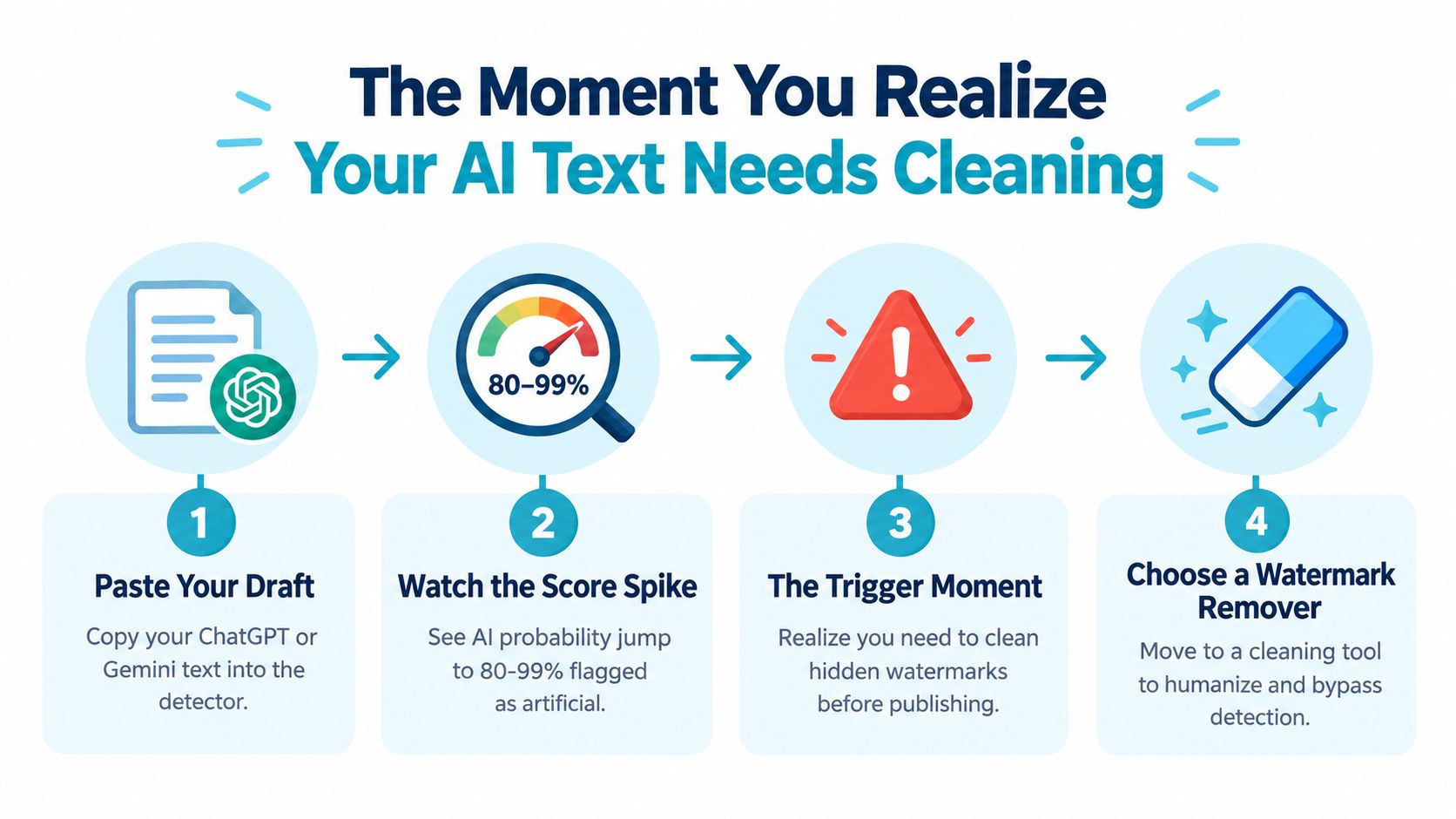
The Moment You Realize Your AI Text Needs Cleaning
Before you clean anything, decide which problem you have. Hidden characters and wording patterns are different problems with different fixes.
If the draft reads fine but behaves badly, suspect invisible characters first. A zero-width space such as U+200B can break search, regex, equality checks, and copy-paste while staying invisible in the editor, as shown in this zero-width space reference. The free invisible character remover finds and removes supported hidden characters in the browser without changing any words, and it doesn't need an account or credits.
If the draft behaves normally but a detector still flags it, hidden characters are not the cause. That's about the wording, and most detectors people use are style classifiers rather than watermark checkers.
The paste clean copy loop
Paste the text and look before you rewrite. As you type or paste into the Simple Unmark cleaner, it counts hidden characters locally in your browser, so you can see whether the text has any before you spend credits. Other browser tools, such as this AI text watermark remover, follow a similar loop: paste, scan, clean, compare.
Then read the result like an editor:
- Deal with invisible characters first. If the count shows zero-width spaces or other hidden Unicode, and that's your only problem, the free remover is enough.
- Decide whether the wording needs to change at all. A rewrite always changes more than a character cleanup.
- Don't rewrite everything by reflex. Often one or two sections are the real problem, and you can edit those by hand.
Practical rule: If copy-paste behavior is broken, start with Unicode cleanup. Only rewrite when the wording itself needs to change.
What the scanner is telling you
The local count covers hidden characters only. It can't see a statistical watermark. Reading one requires the provider's key and detector, and Google, Anthropic, and OpenAI don't offer a general public checker for arbitrary text.
Length matters for those watermarks. A 2026 paper that ran the open-source SynthID-Text implementation on open-weight models notes that detection strengthens with passage length and with the entropy of each word choice, so short snippets are noisy while longer blocks give a detector more to work with (study details). For long text, a tiny cosmetic edit won't change much.
SynthID Text works by shaping word choices during generation and scoring them statistically afterwards; an independent theoretical analysis examines how its scoring methods behave and where they can be attacked (SynthID-Text analysis). Because nothing is inserted as a character, deleting an odd character does nothing to it. If your concern is a statistical watermark, only rewriting the wording can weaken it.
What to do next
Run the cleaner, then compare the before and after carefully. You're checking that the meaning held while the phrasing changed, not looking for dramatic rewrites.
After that, paste the cleaned version where it will be used and test it there: the CMS, the application form, the client document. Keep the routine simple and repeatable: paste, check, clean, compare, copy back.
Guest Mode vs Signed-In Account
Guest mode covers occasional short jobs. Sign in if you clean longer text or do this regularly.
Guest Mode vs Signed-In Account at a Glance
| Feature | Guest Mode | Signed-In Account |
|---|---|---|
| Local hidden-character count | Yes | Yes |
| Free usage | Three cleans | 10 starter credits |
| Length per clean | Up to 100 words | Up to 5,000 words or 60,000 characters |
| Cost after free usage | Sign in to continue | 0.1 credit per started 100 words (Private), twice that in Confidential |
| Text storage | Not stored in Simple Unmark's database | Not stored in Simple Unmark's database |
| Best use | Testing or a short paragraph | Articles, reports, and repeat work |
Guest mode is enough for a short email or a single paragraph. An account makes sense when you work with full drafts. Neither keeps your text, so copy the result before you leave the page. The only exception is optional feedback: if you choose to share a cleaned result with us, that output is stored.
What the Rewrite Tries to Keep Intact
The cleaner doesn't have separate switches for each kind of detail. Every rewrite aims to keep facts, numbers, proper nouns, tone, and intent while changing word choice and structure. It can't guarantee identical meaning, so those are also the things to check afterward.
What to check after each clean
| Detail | What to compare | Matters most for | What can go wrong |
|---|---|---|---|
| Facts | Core claims and relationships | Research, product copy, summaries | A claim gets softened or overstated |
| Numbers | Figures, quantities, dates | Reports, coursework, analytics copy | A figure gets rounded or reframed |
| Proper nouns | Names of people, brands, tools, places | Case write-ups, résumés, client work | A name gets generalized |
| Tone | Voice, formality, cadence | Professional copy, personal writing | The draft sounds more generic |
Sentence-level examples
These are illustrative checks, not recorded outputs.
A line like "The team shipped 3 updates in Q1" should still say 3 updates and Q1 after the clean. If it now reads "several updates early in the year," restore the number.
"Google" should stay "Google." If the rewrite turns it into "a large tech company," the sentence lost precision.
A blunt sentence should stay blunt. If it comes back smoother but no longer sounds like you, edit it back by hand.
Our AI watermark remover page explains what the rewrite targets. For client work, check tone and names first. For research or product text, check facts and numbers first.
How Credits and Word Limits Actually Work
The cleaner charges by word count, rounded up to the next 100-word block.
In Private mode, each clean costs 0.1 credit per started 100 words, so a 350-word paste costs 0.4 credit and a 1,200-word draft costs 1.2 credits. Confidential mode costs twice as much. Credits are one-time purchases from $5, don't expire, and don't require a subscription.
Quick math for normal jobs
- 150 words: starts a second 100-word block, so it costs 0.2 credit
- 800 words: eight blocks, so it costs 0.8 credit
- 3,500 words: thirty-five blocks, so it costs 3.5 credits
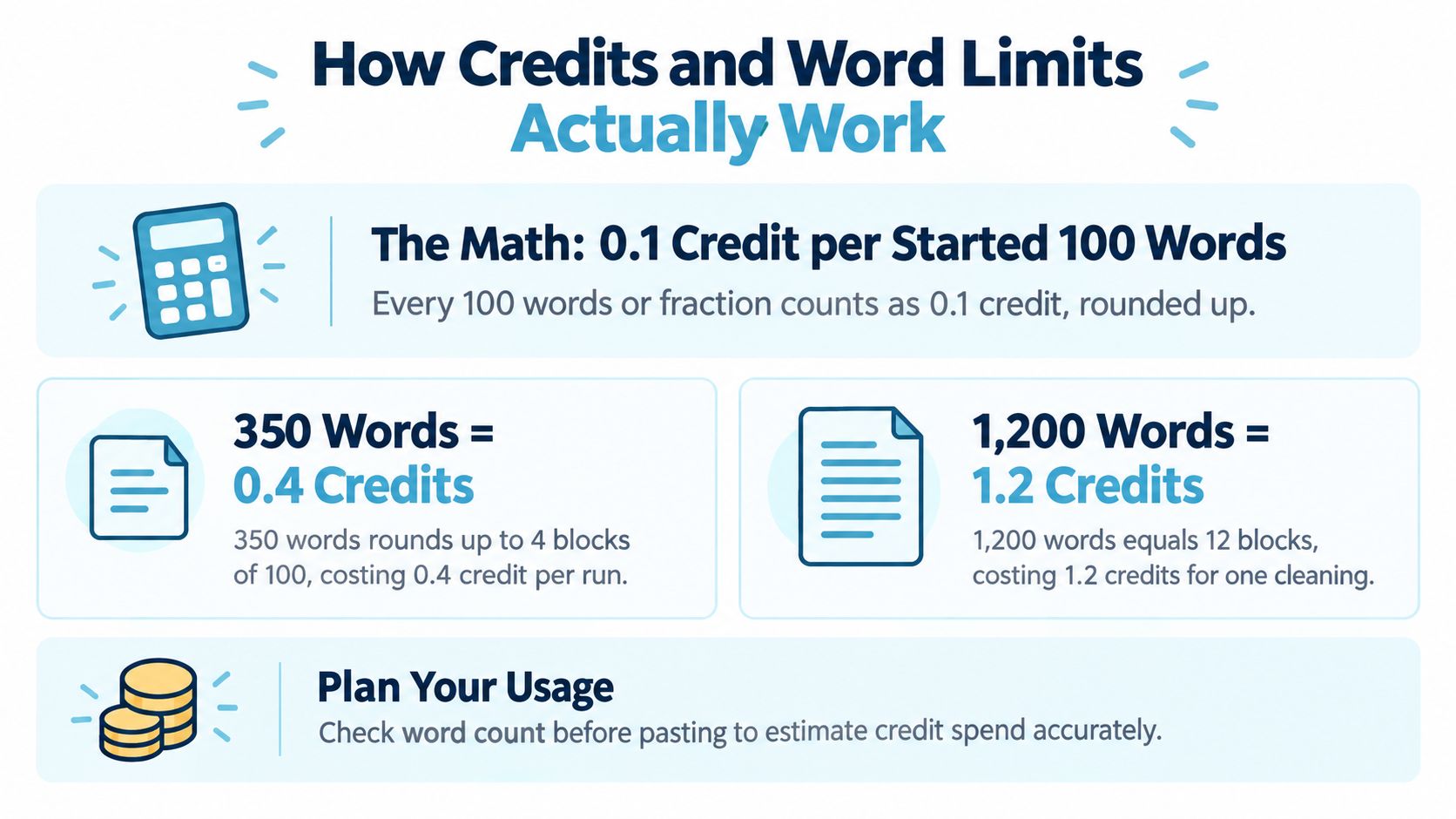
The hidden-character count runs in your browser and costs nothing. Credits are only used when you run a clean, so you can check the text first and decide whether a rewrite is worth it.
Why splitting long drafts can help
You can paste up to 5,000 words, but splitting a long, uneven document into sections gives you more control:
- Easier review: You compare one section at a time.
- Targeted reruns: If one section needs another pass, you don't pay to rewrite the whole document.
- Skipping what doesn't need it: Sections you've already edited heavily may not need a rewrite at all.
Each section is rounded up separately, so split at natural paragraph or section breaks.
Gemini, ChatGPT, and Claude Text
The cleaner works the same way on text from any model; there are no per-provider settings. What differs is what each provider says about watermarking its text.
What Each Provider Documents
| Source | Documented text watermark | Scope | Detector access |
|---|---|---|---|
| Gemini | SynthID Text, a token-choice watermark | Google documents it as in production | No general public detector for arbitrary Gemini text; Google's open-source reference implementation only checks matching configurations |
| ChatGPT | textGrain, a word-choice watermark | Eligible ChatGPT and Codex text in the EU, announced October 2026; opt-in, off by default, for API customers; not a global default | Restricted to approved researchers and expert organizations |
| Claude | A keyed, SynthID-Text-style token-choice watermark | Anthropic describes it as rolling out | Detection API in restricted private preview, not a public checker |
None of the three uses hidden characters as its watermark. Invisible characters in copied text usually come from the copy path. For background on Google's approach, see our guide on whether Gemini watermarks text.
Practical differences come from the content more than the model. Drafts packed with names, product labels, or figures need a careful check of proper nouns and numbers. Polished prose you've already edited may lose nuance if rewritten, so consider whether it needs a rewrite at all.
Troubleshooting After a Clean
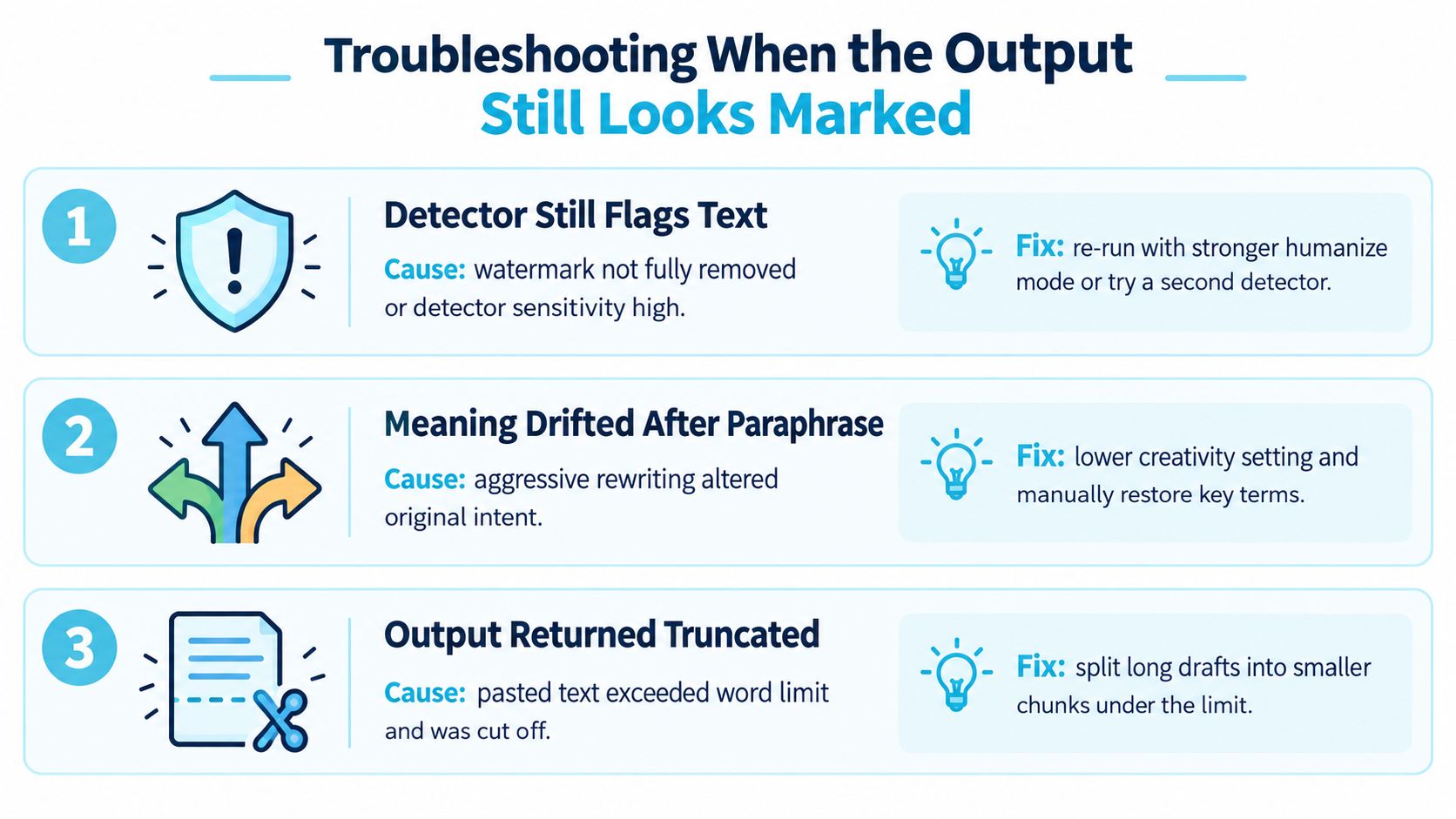
Problems after a clean usually fall into three groups: a detector still flags the text, the meaning drifted, or the clean didn't run as expected.
A detector still flags the text
First, know which detector you used. Tools like GPTZero or Turnitin's AI indicator are classifiers that guess from writing style; they don't read provider watermarks. A flag from one of them doesn't mean a watermark survived, and a low score doesn't mean one was removed.
Research suggests that thorough, meaning-preserving paraphrase is what affects watermark detection. A 2026 forensic-readiness study found that paraphrasing removed nearly all initially detected watermarks in its tests, but those tests used short 50-token texts, small samples, and open-source research implementations, including a MarkLLM version of SynthID-Text rather than Google's production system (forensic-readiness study). Earlier attack research that targets high-information tokens with a rewrite reported near-complete removal against several research watermarking schemes (paraphrase removal results). None of that predicts a result for your text or for a provider's production detector; it shows that real rewriting matters more than cosmetic edits.
If you still want to change a flagged passage:
- Edit the flagged section by hand. Your own phrasing is the most direct fix.
- Rerun only that section. It costs less than rerunning the whole document.
- Check whether the text is short. Classifiers and watermark detectors are both unreliable on short passages.
Meaning drifted after the rewrite
Restore the original wording for any sentence where a fact, number, or name changed, and edit the surrounding sentence by hand if needed.
Research on attacking n-gram-style watermarks takes a more targeted route: estimate watermark strength with black-box probing, identify likely biased token regions, then paraphrase or rewrite those spans. The De-mark paper describes using random selection probing to infer watermark strength and recover hidden list structure before removal, and reports effective removal in experiments on Llama3 and ChatGPT (De-mark workflow). That requires model access most users don't have. The everyday lesson is to focus on the passages that matter and leave the rest alone.
The clean won't run or the output looks incomplete
If the cleaner won't run, the text is probably over the limit: 100 words for guests, or 5,000 words (and 60,000 characters) for accounts. Split it and try again. If the output looks off, check the input for stray formatting, broken paste fragments, or hard line breaks; the free line break remover joins wrapped lines first. For background, see hidden Unicode vs statistical watermarks.
Before you call a clean a failure:
- Recount the words
- Remove obvious formatting debris
- Retry with a smaller section
- Verify names and numbers survived
- Compare only the problem passage, not the whole draft
Setting Honest Expectations After a Clean
A watermark remover may weaken a signal. It can't promise that text is undetectable, and because we don't have access to providers' watermark detectors, we can't measure how much of a watermark remains after a clean. Detectors also err in the other direction: the forensic-readiness study above found its SynthID-Text configuration flagged a small share of paraphrased human-written controls as AI-generated.
The European Parliament's briefing on generative AI says watermarking techniques are not standardized, so one system may not read another's mark, and it warns that AI-text detectors can produce false positives, including on human writing (European Parliament briefing). One detector score doesn't tell the whole story.
Cleaned text is still a draft. Read it aloud, fact-check anything factual, and put your own voice back in.
Both privacy modes send text to the model provider DeepInfra for the rewrite. Private mode routes plaintext through our web app to the rewriting workload. Confidential mode encrypts the text in your browser directly to the workload and bypasses our web backend, but DeepInfra still reads it to produce the rewrite.
- watermark remover
- AI text cleaner
- Simple Unmark
- remove SynthID
- ChatGPT watermark
Related articles
Watermark Remover Apps for AI Text: 7 Tools Compared
Compare seven AI text watermark remover and humanizer apps by rewriting, Unicode cleanup, privacy and pricing model. No tool guarantees a detector result.
Text Watermark Removers: Cleanup vs. Rewriting
Understand hidden-character cleanup and statistical watermark rewriting. Choose a method by the text problem and review every substantive change.
AI Detection Bypass Tools: Claims and Limits
Understand what bypass tools change, why classifier scores differ from watermark tests, and how to review rewritten text without false confidence.